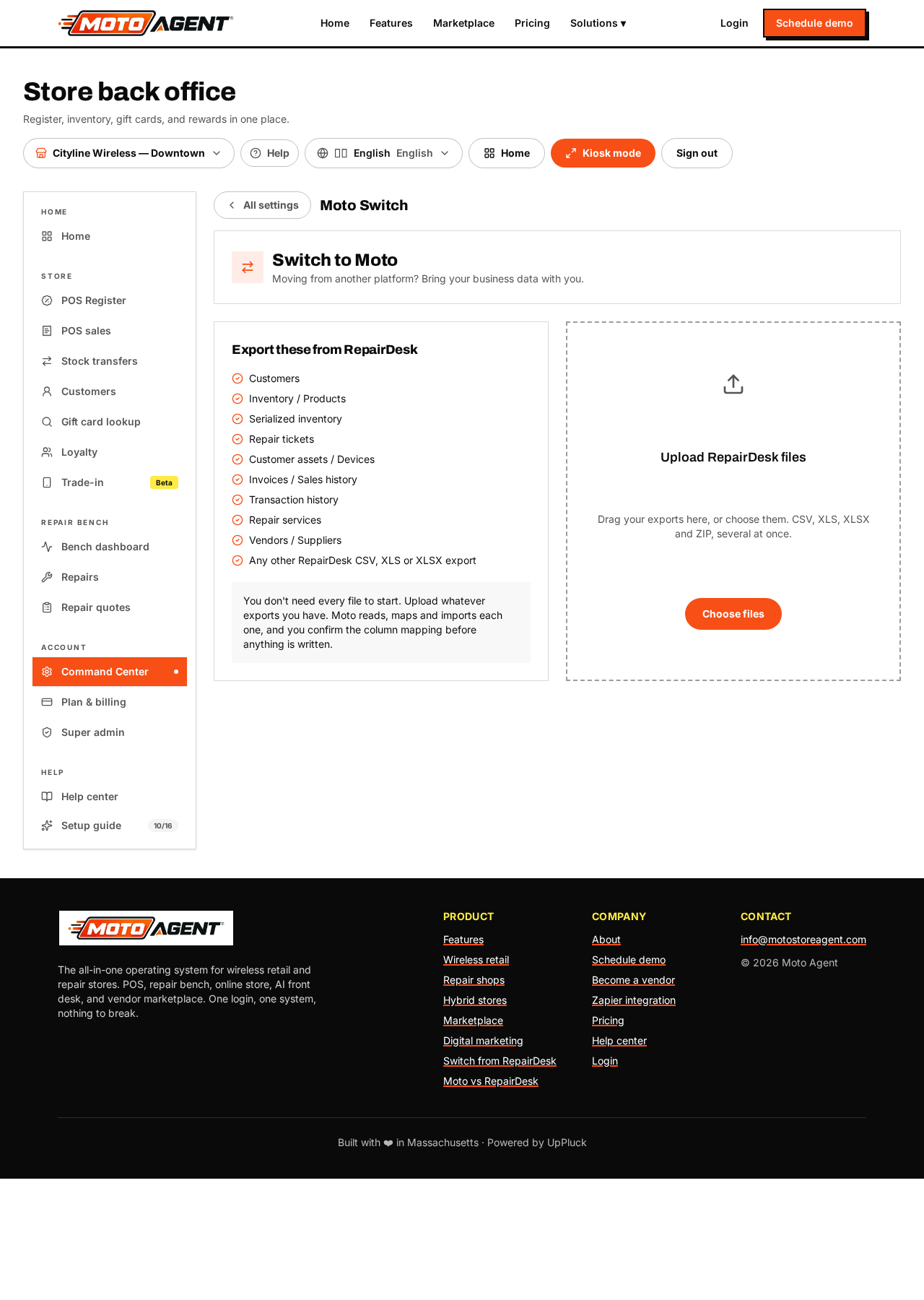
What the Migration Center does
The Moto Migration Center takes the files you export from your old system and turns them into live records in Moto: customers, products and stock, serialized units, customer devices, repair tickets, invoices and sales history, transactions, repair services, and vendors/suppliers. Nothing is written into your store until you review everything and press Import into Moto.
Where to find it
Command Center → Connections → Moto Migration Center. Owners and district managers can run a migration.
Step 1: pick where you are coming from
On the first screen choose your platform:
- RepairDesk and RepairQ: customers, products, serialized stock, devices, repair tickets, invoices, transactions, services and vendors
- Square and Clover: customers, products, invoices, transactions and vendors (these systems do not export repair tickets or devices)
- Lightspeed: customers, products, serialized stock, invoices, transactions and vendors
- CSV or Excel: anything you can put in a spreadsheet, including data from a system we have not named
Each source gets its own checklist of files to export and its own batch code prefix, so you always know where a record came from. Photos, signatures and file attachments are not part of these exports and stay behind.
Step 2: export and upload
Export whatever you have, you do not need all of it. CSV, XLS, XLSX and ZIP files are all accepted, several at once. Moto reads each file, works out what is inside it, and shows you the record count and how confident it is. A file you have already uploaded is flagged so you never import it twice.
Step 3: review the column matching
Press Review mapping on any file to see each of their columns, an example value, and the Moto field it will fill. You can change any column, ignore it, or keep it as a custom field so nothing from your old system is lost. For leftover columns, press Suggest matches and Moto proposes a match for each one. Suggestions are never applied on their own, you accept or dismiss each one.
Step 4: check the exceptions
The pre import summary groups anything worth a look before you commit: products missing a SKU, duplicate SKUs, missing prices, negative stock counts, customers with no phone or email, possible duplicate customers, tickets with no customer, invoices with no total, and sales naming products that are not in the catalogue. Each group shows examples so you can fix the export or carry on knowingly.
Step 5: decide about open repairs
Where your source includes tickets, choose what happens to the ones still open:
- Hold them for your review
- Activate them in the Repair Bench
- Import as history only
- Skip them
Step 6: import
Press Import into Moto. A progress bar shows each stage. Stock quantities arrive as opening inventory adjustments, so your cash drawers and sales reports are never affected.
How sales history lands
Invoices import with their original invoice number, date, subtotal, discount, tax, total, payment method and refund status, attached to the right customer where Moto can match one confidently. Transaction records are laid on top of their matching invoice rather than imported as second sales, so your totals are never counted twice; a payment with no matching invoice imports as its own record.
Step 7: clean up anything flagged
Moto never silently merges records. Anything uncertain lands in one of three lists:
- Possible duplicates: merge, keep the existing record, create a separate one, or skip
- Needs review: for example a repair or a sale we could not confidently tie to a customer
- Errors: rows missing something essential, with a suggested fix and a retry
Your old IDs stay with you
Every imported record keeps its original ID and the system it came from. The finished migration report shows the old system, the batch code and the import date, and includes a lookup box: type an old ticket or invoice number and Moto tells you which record it became.
Undo
From the finished migration you can download a report or roll back, which removes everything that migration created, including imported sales, services and vendors.